How to Use the PARETO UI
Step-by-step guide
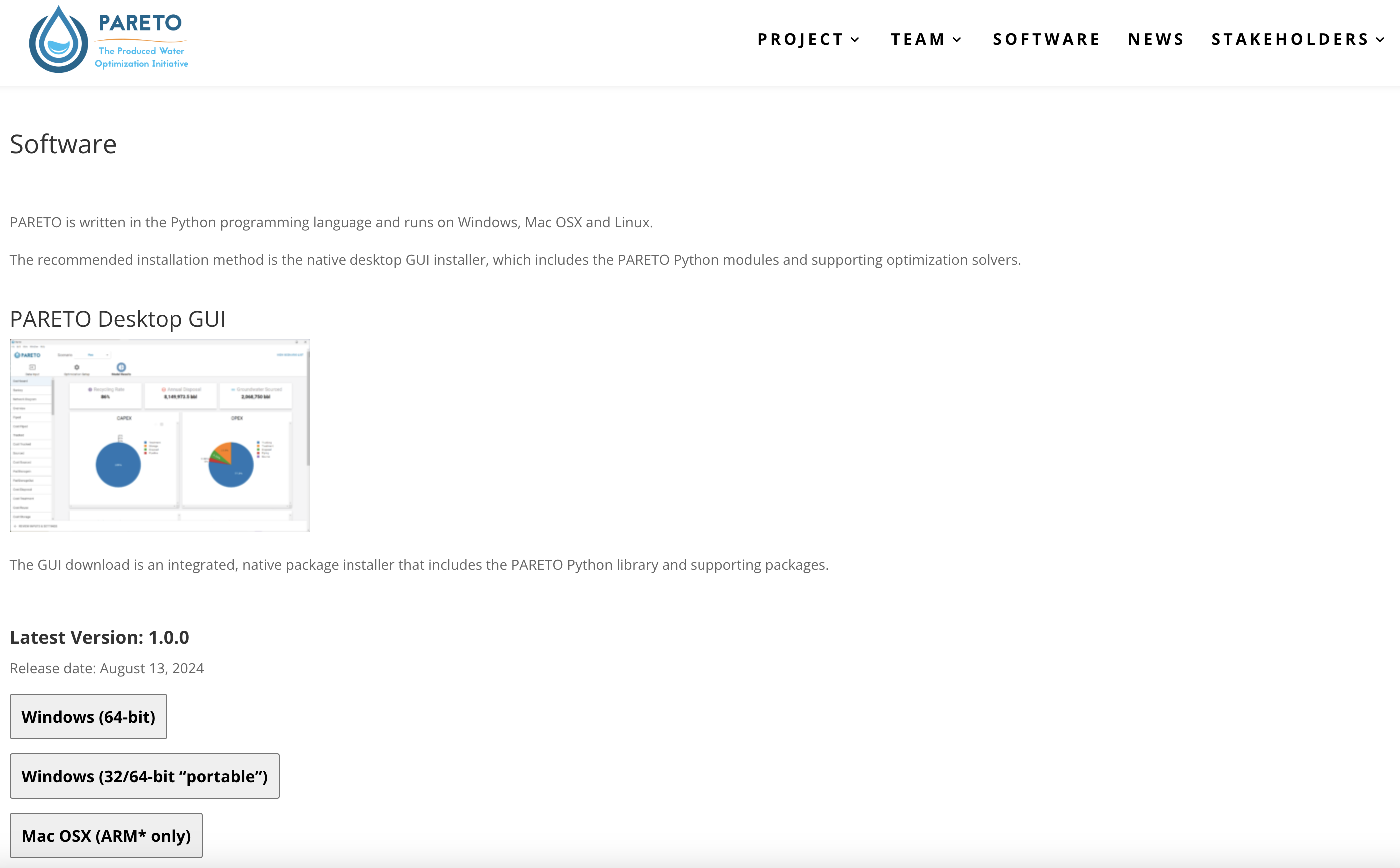
Step 1. Download the latest version of PARETO for your operating system at the Project PARETO Website.
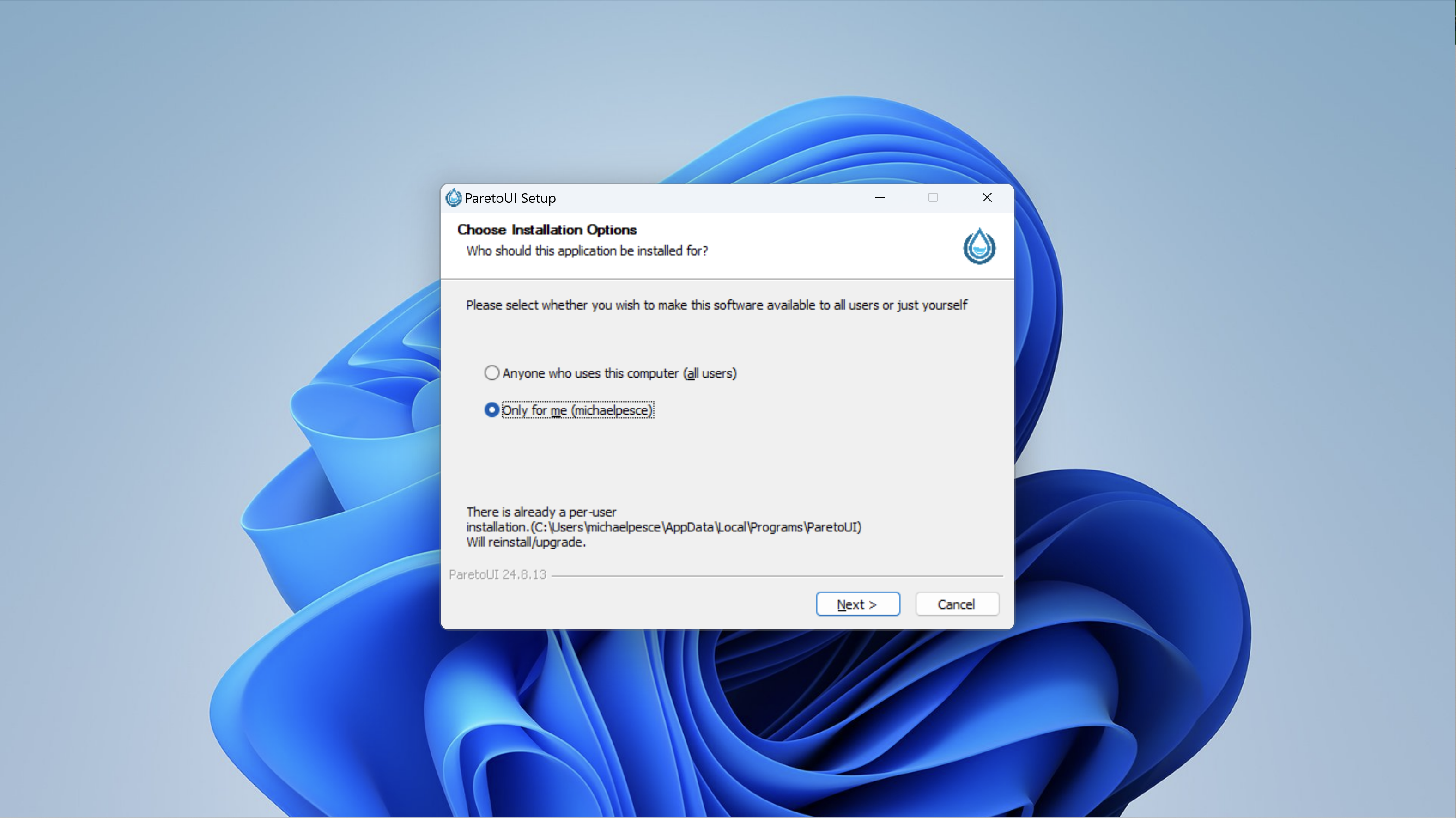
Step 2. Follow the installation steps to install the application. For Windows, see below:
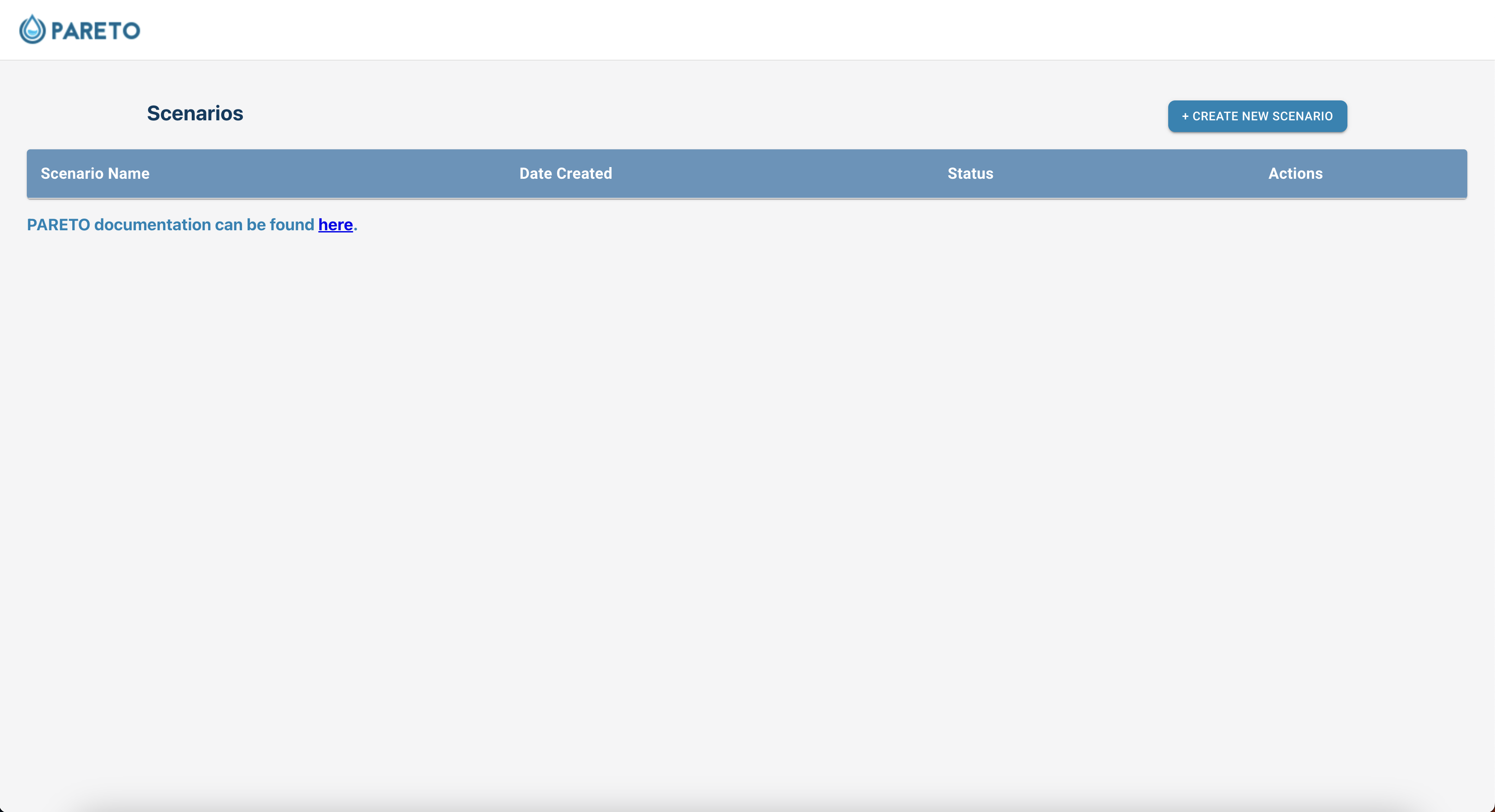
Step 3. Run the application. You should see a splash page before being redirected to the scenarios page:
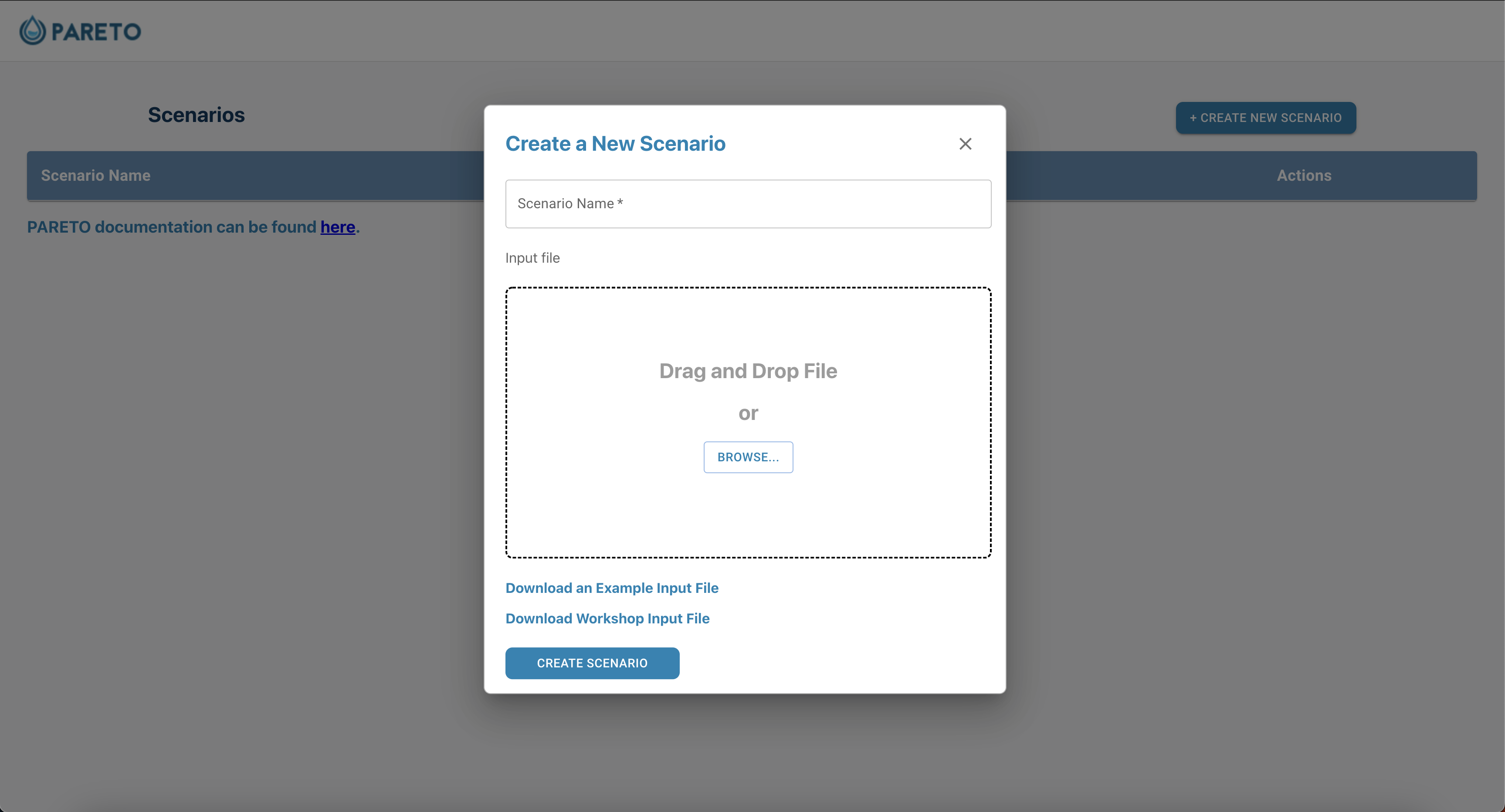
Step 4. Click on “Create new scenario”. Download from one of the available sample inputs, or use your own data, then name the scenario and click “Create scenario”:
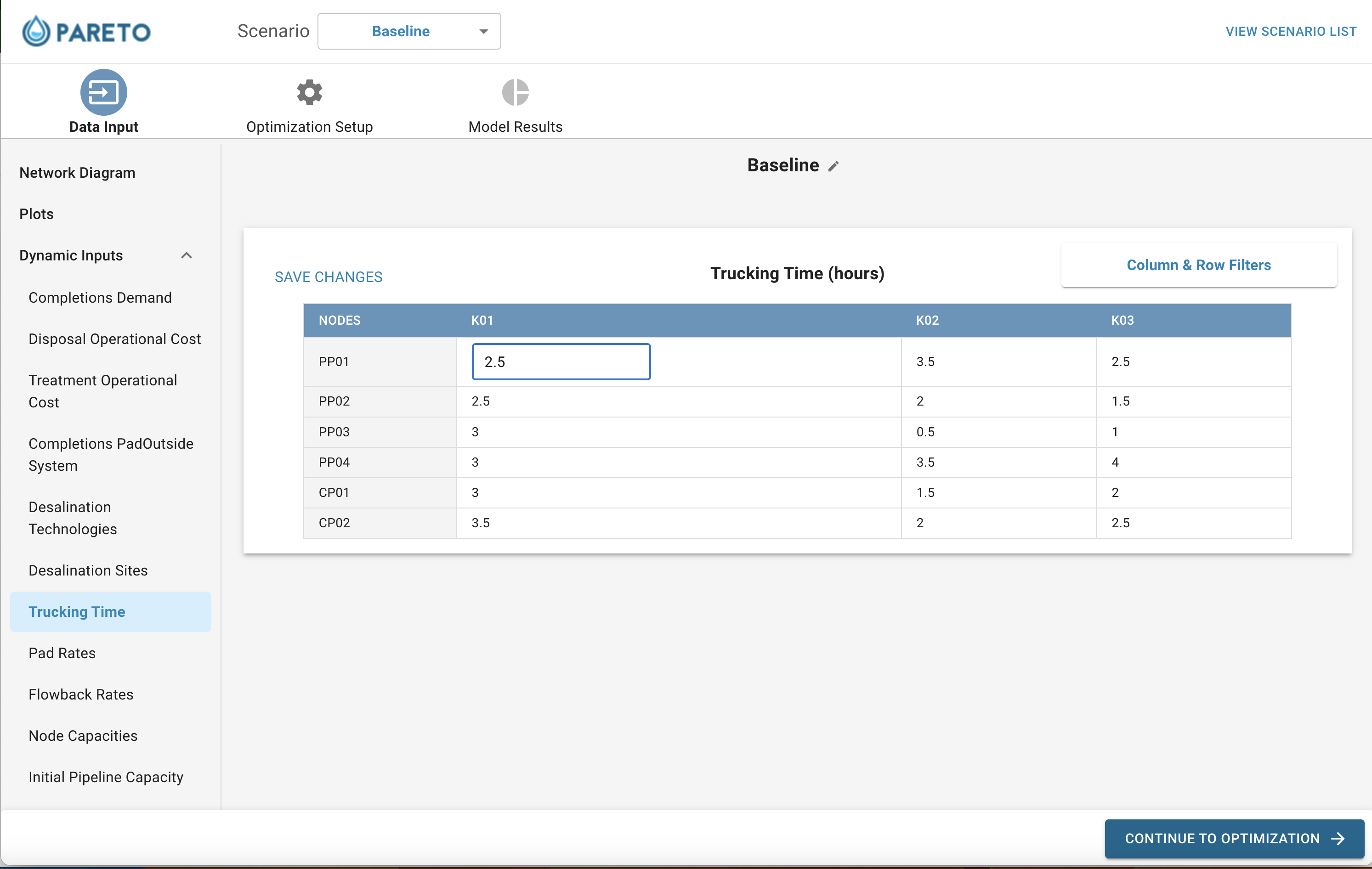
Step 5. Browse the input plots and tables, with the option to edit any of the inputs:
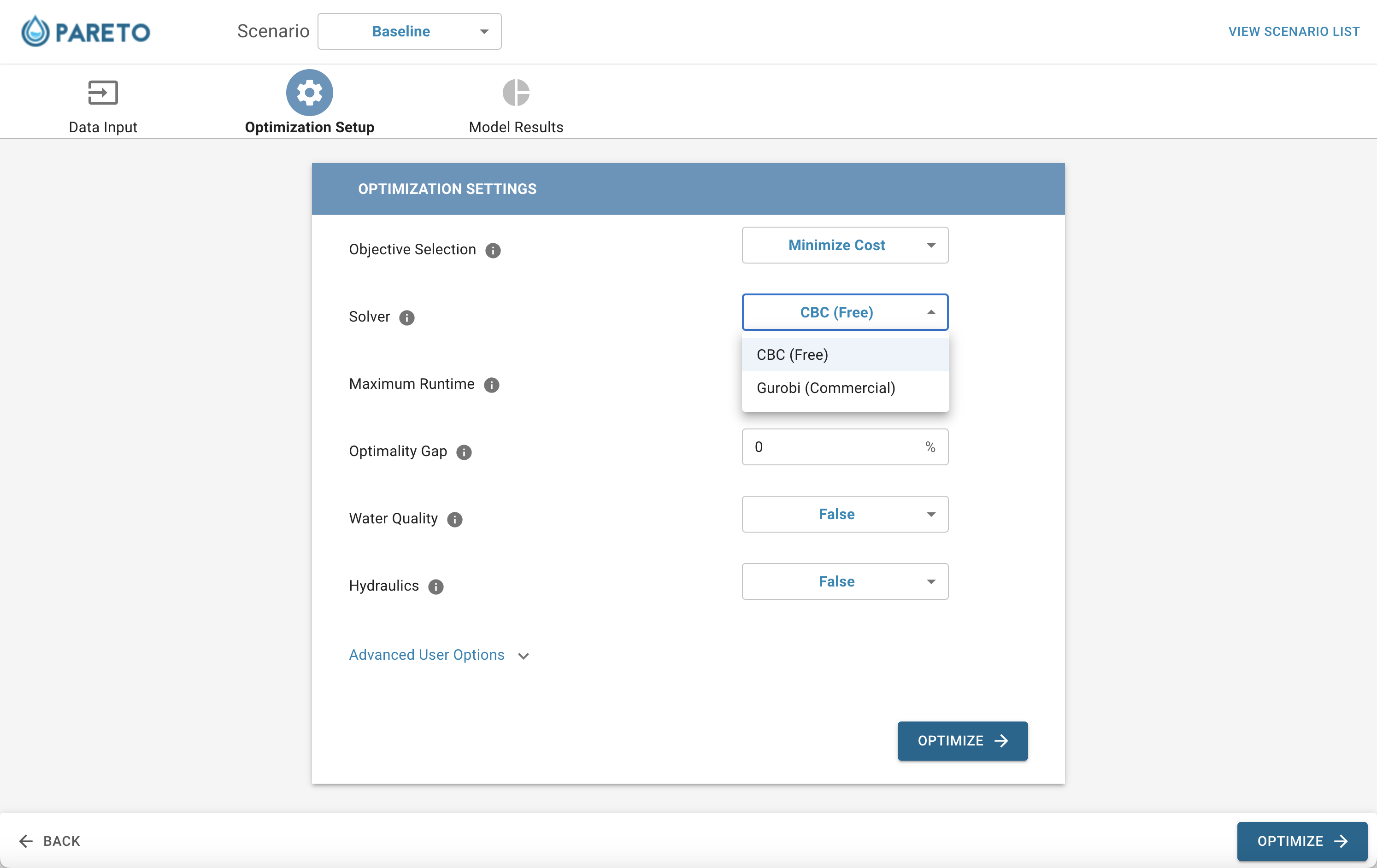
Step 6. Click “CONTINUE TO OPTIMIZATION” button, and choose from the optimization settings:
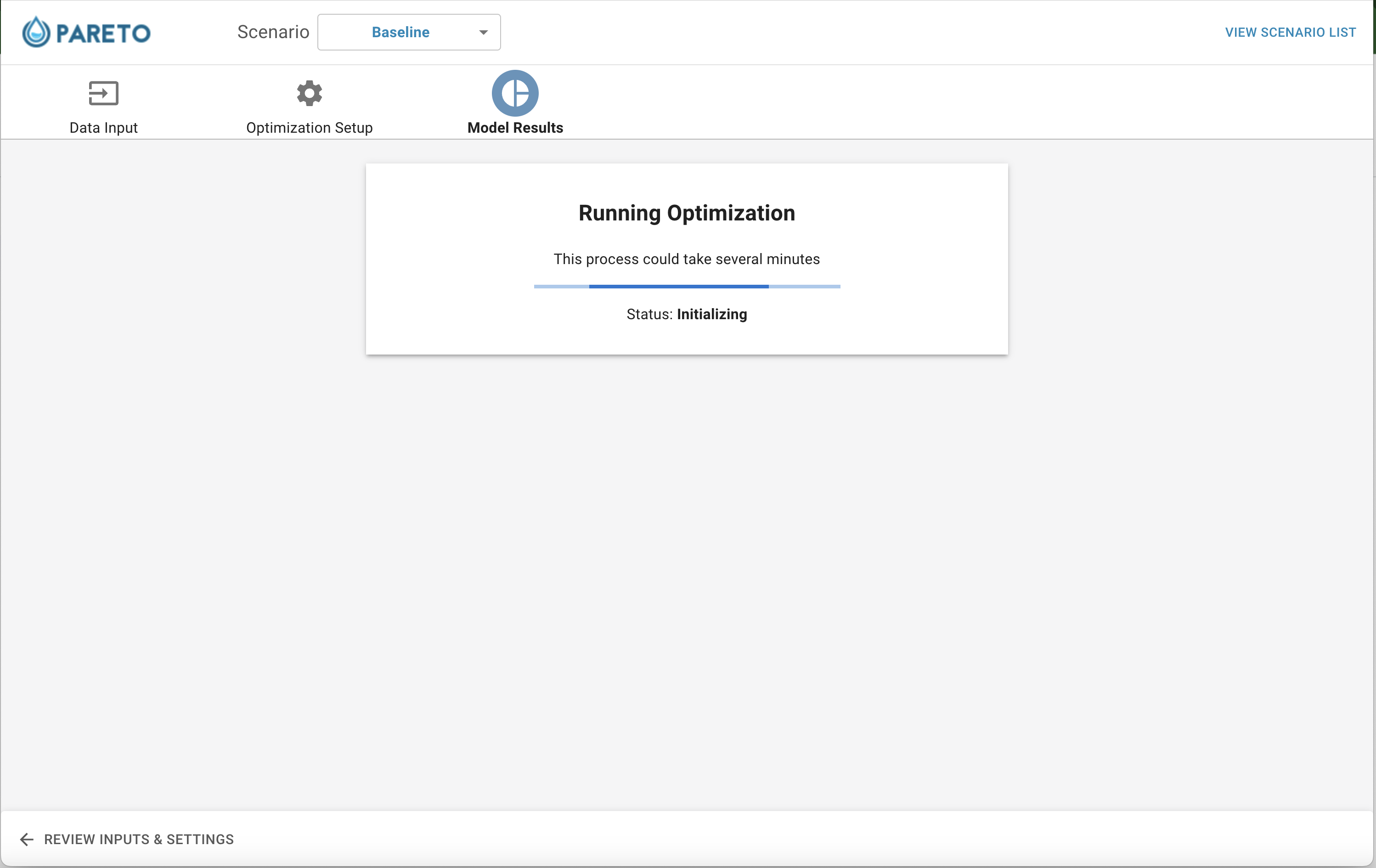
Step 7. Click “OPTIMIZE” to run the PARETO strategic model:
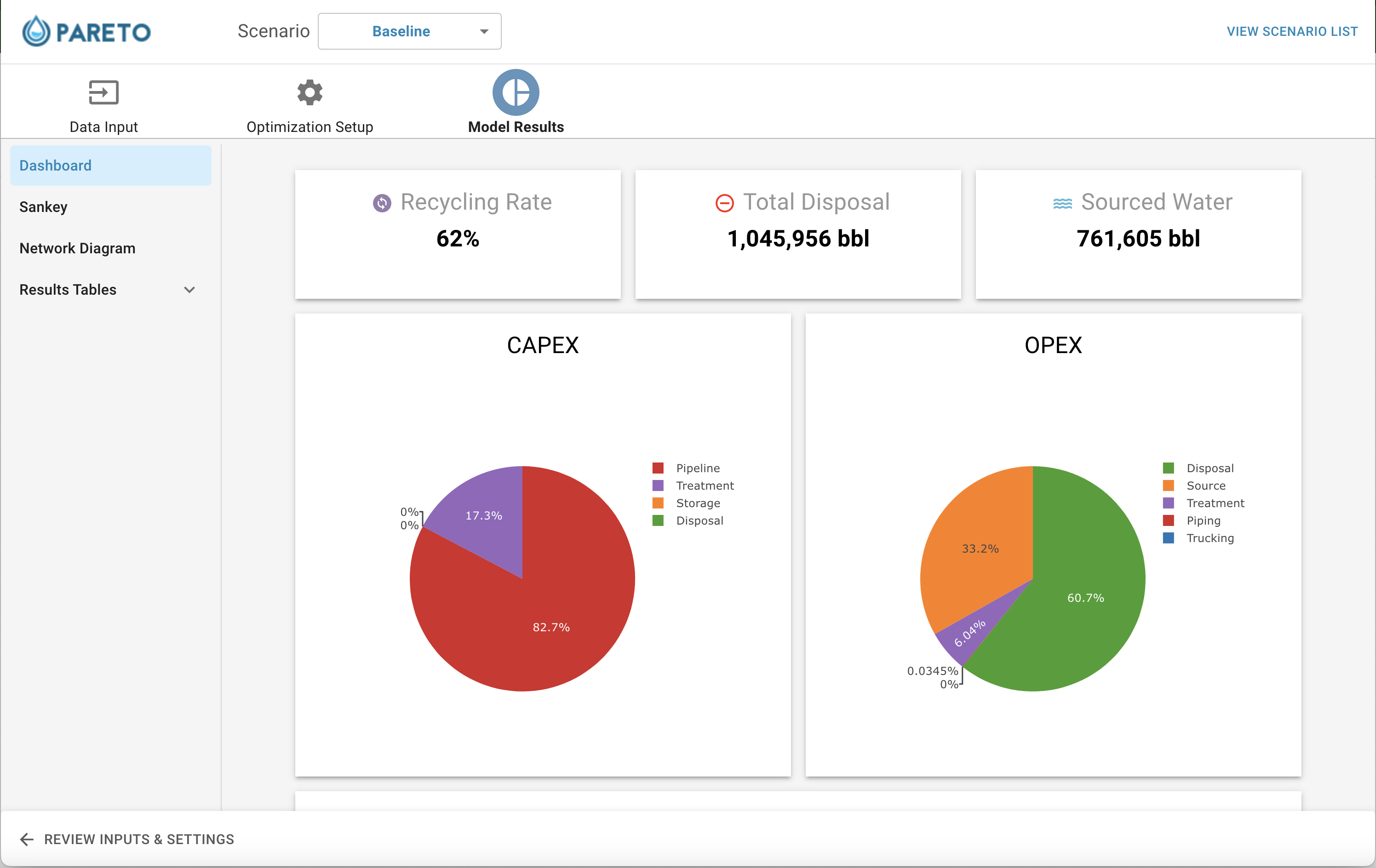
Step 8. When the model is finished running, the KPI dashboard will be visible from the model results section:
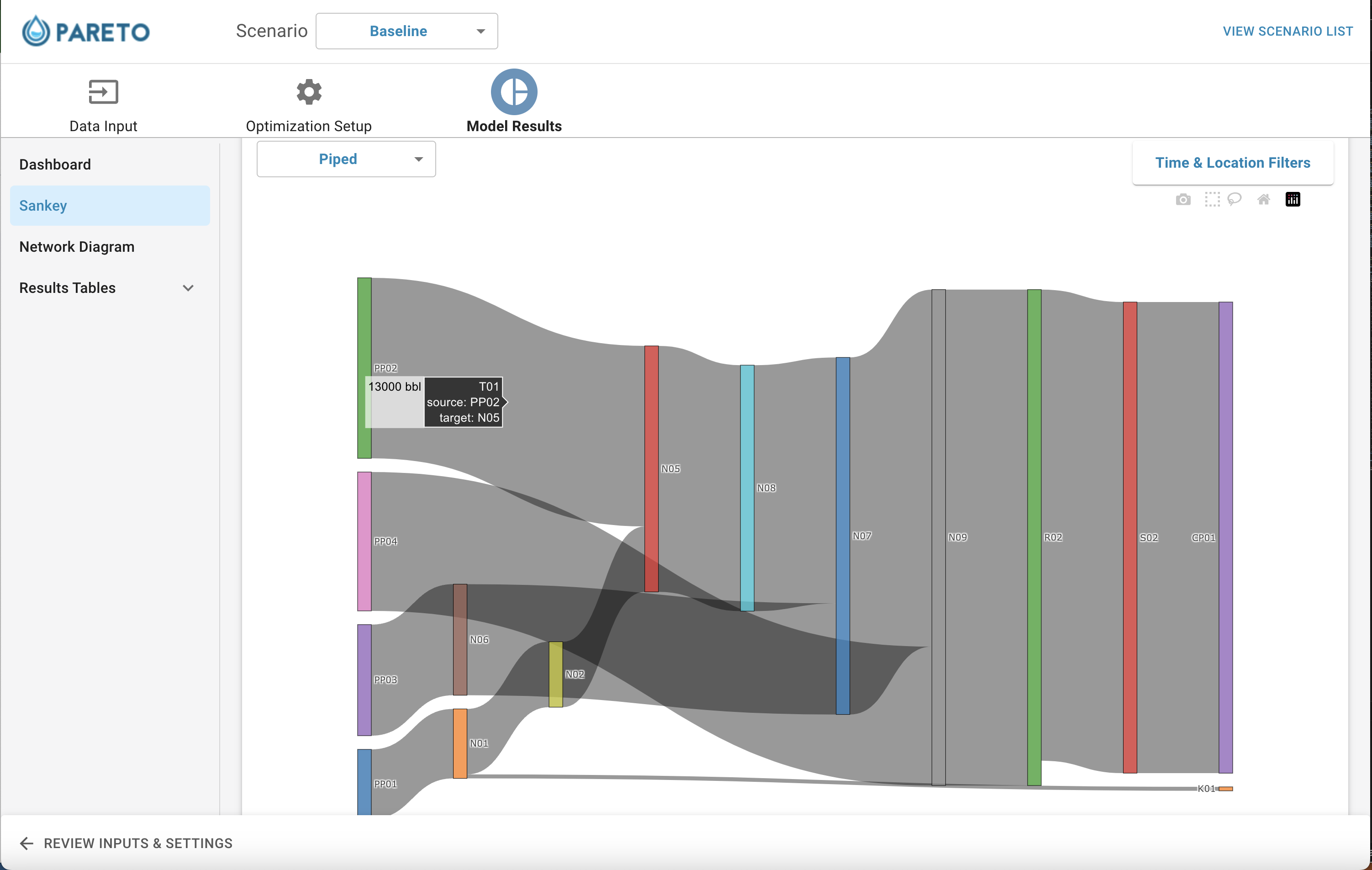
Step 9. Analyze the output by looking through tables and graphs, including the Sankey diagram that interactively displays the transport of produced water (via piping or trucking):
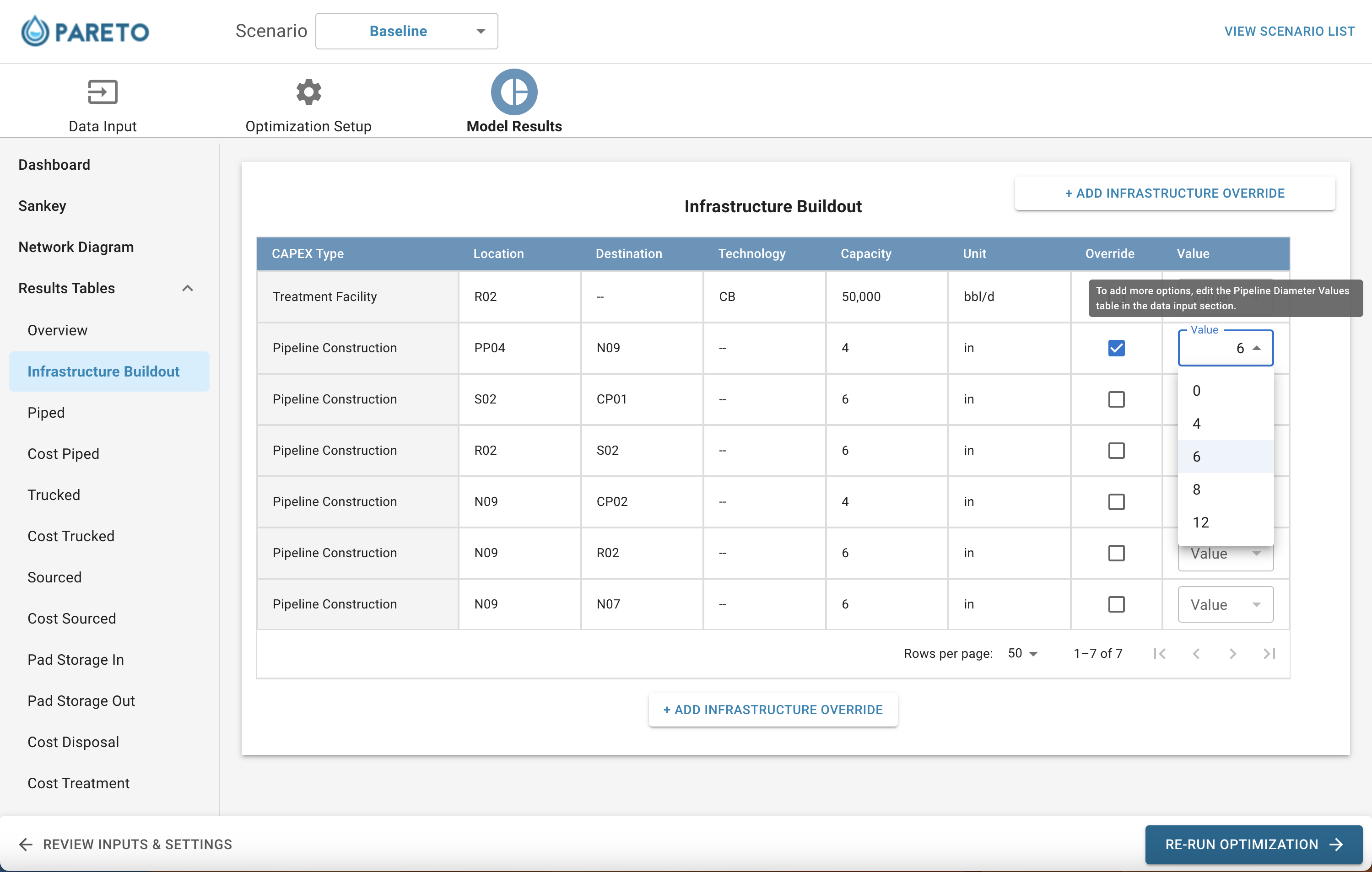
Step 10. If you are unhappy with any of PARETO’s infrastructure decisions, feel free to override with your own decisions in the “infrastructure buildout” tab:
Step 11. Compare different scenarios by clicking on any of the compare icons from the scenario page:

Map Feature (Beta)
Note: This section describes a pre-release feature with limited functionality at this time.
Users can upload a map file to the UI that represents their network. By using this feature, users can greatly reduce the amount of input data required to begin working with PARETO.
The UI can handle Keyhole Markup Language (KML) and zipped KML (KMZ) as map inputs. KML is an XML-based language schema for expressing web-based maps. KML files can be created using Google Earth, Google Maps, or ESRI ArcGIS, or using a plain text editor. More information about KML/KMZ can be found here.
Download A Sample Map File Here
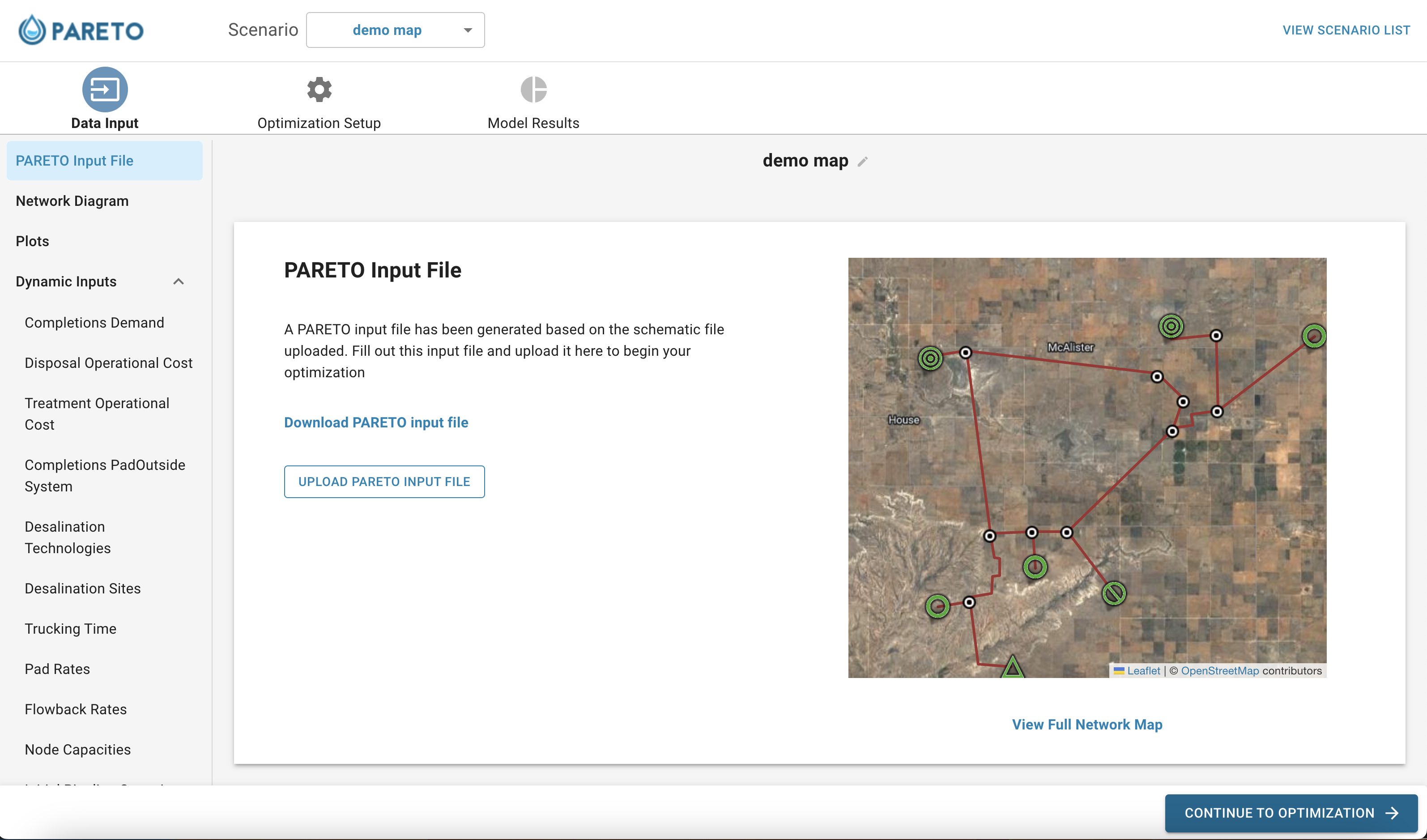
Step 1. Navigate to the PARETO UI scenario list page. Click create scenario and upload your map file. You will be directed to this input page:
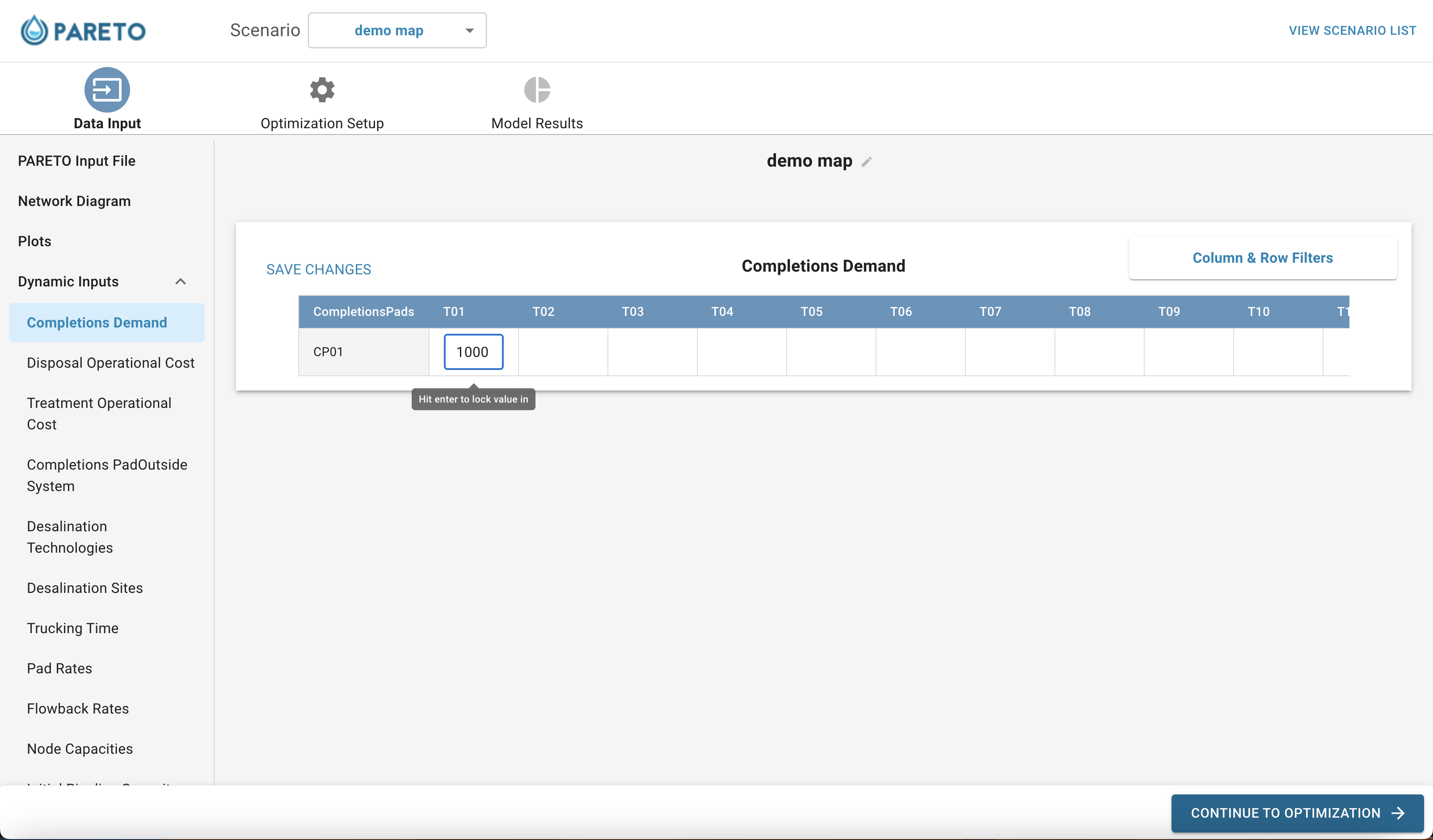
Step 2. Download the auto-generated Excel input file, fill in the required data, and re-upload to continue with optimizing your scenario. Or, fill the data in directly through the UI:
Once the scenario is ready to go, you can continue optimizing and interacting with the UI by following the steps above.